Showing posts with label HOW TO. Show all posts

Google Chrome Browser ah Kawllai Font (Burmese Font in Chrome Browser)

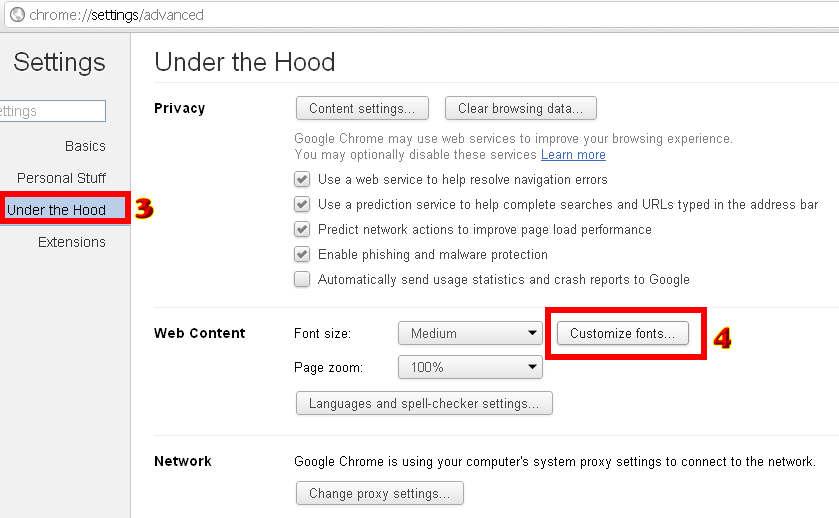
Google Chrome Browser ah Kawllai Font (a diakdiak Zawgyi) bawl theih nading in
A nuai a bang in pai diudeuh ding ahi hi. A lemlohna khat peuh a om leh zong kikup beh theih lai ahi hi. A tuam in setup bawl kul a, (UT-F8) zat ding kisam ahi hi. A lim sung a om dan in bawl ding ahi hi.


Linking Windows Live Application for Ning Network


ENABLE SOCIAL SIGN IN WITH WINDOWS LIVEEnabling Social Sign In for Windows Live will allow your members to join or sign in to your network with the same credentials they use to sign in to Windows Live. To set this up on your network, go to the Sign up / Sign in management page from your dashboard. Check either of the boxes next to Windows Live to prompt a window to pop up.


From that pop up, you'll see a link to Windows Live. Click on that link to be taken to the Windows Live sign in page in a new window or tab. Don't have an account? No problem! Create your account first on Windows Live.
On the Windows Live account creation page, fill in all of the fields and click "I accept" to create the account. You'll need to verify your email address to complete the process, so look for a verification email and click on the link within to verify your email address. You should now be all set with a new Windows Live account. Once you have a Windows Live account, you'll be able to create an app on the My Applications page. You should arrive at this page automatically, but can also reach it by going to https://manage.dev.live.com/Applications/Index. Click on the "Create application" link to get started.
Name your app as you want users to see it and set the primary language for your app. Note: If you see an error message stating you are not allowed to use your selected app name, edit it or click on the link to request approval from Windows Live.
Click "I accept". App details will now appear. Copy the Client ID and Client secret. Paste this information into the Client ID and Client secret spaces provided on your network.

Back on the Windows Live app page, click the "Application Settings Page" link. Then click on "API Settings". From here, you'll see a "Redirect domain" field. In the pop-up window back on your network, copy the link in Step 6 and paste this into the "Redirect domain" field on your Windows Live app.
(There is a mobile client app option, but only select "Yes" if your app is already a mobile app. Otherwise, leave it set to "No". To learn more about this option, check out Windows Live's documentation at http://tools.ietf.org/html/draft-ietf-oauth-v2-20#section-2.1.)
Click "Save" on your app's page, then click "Done" on your network.

You can add this social sign in service to either the sign up or sign in pages, or add it to both, by checking the corresponding box. Save your changes.
Your sign up page will now display a Windows Live button for people who want to sign up (and / or in, depending on your preference) using their Windows Live credentials.
http://www.ning.com/help/cgi-bin/ning.cfg/php/enduser/std_adp.php?p_faqid=3930

Zawgyi-Mobile Font For All Mobile Devices

Zawgyi-Mobile Font For All Mobile Devices
 Tu ciangciang ong suaksa Burmese font te Phone model dang te ah poina a neih hetloh hangin Sony ah thun leng et dan lemlian lo tampi tak om hi. Tua ahih maninSketchEF font pen Zawgyi font sungah ka gawm pheileh ong lem kik bilbel hi. A omsaZawgyi-Mobile font te zong kicimtak pianta leh Zawgyi-One font sangin zong kitel zaw, siang zaw cih zong gen nuam lai ingh.
a sinnuam na om uh leh na sin unla, a lem kei leh na laihkik un. Na Phone sung uh ah bangmah buaina om tuan lo ding hi.

screen shot

http://i.imgur.com/e5Xxq.jpg

Download Zawgyi-Mobile font
http://www.box.com/s/7cb96bd3e854b1cd9618

Anuai apen Sony Ericsson Android Phones zangte ading a
Zawgyi-One banglian in zang nuam ing a ci te ading in zat theih hi.
Deihsakna lainpi tawh kong hawmsawn hi.

download

http://www.box.com/s/eeb821248f6cb8efb188

Deihsakna tawh,
Myominlatt@Mysteryzillion

How to Fix File Folders Become Shortcuts in Removable Media

How to Fix File Folders Become Shortcuts in Removable Media
Have you ever met this kind of wired situation? Your file folders suddenly became shortcuts when you connect the removable media (USB pen drive, external hard drive and sd memory card etc.) to your computer and try access data in it. You have sizable files say a couple GB in the drive, but it just shows 1KB or 2KB and so on. You also tried the removable media in a different PC, still the same problem occurred. How to make the file folders accessible again or how to recover lost files first of all? 

What Caused to Your Folders? 

Yes, you may already guess it - probably the virus or Trojans (like BUOUFO, QWERT etc) or autorun.inf worm. Your pen drive or memory card may be suffered or infected. As a result, the files or folders become "hidden". Sometimes you can make them visible again by switching to non-hidden mode, while most of the times you have to kill those virus or Trojans. 

How to Fix Folder Shortcuts Problem? 

To start with, do not format the removable media immediately as formatting will make the data insides much harder to be recovered, and format won't be necessary to kill the virus. Sometimes it won't let you format the device. For example autorun.inf worm will stop a flash drive from being formatted. So follow the steps below and see if you can make things right. 

#1 Check whether the files are not in hidden mode.
Click on "Start" --> Run -->type cmd and click on OK.
Here I assume your removable drive as G:
Enter this command: attrib -h -r -s /s /d g:\*.* (replace the letter g with your usb or memory card "removable drive" letter showed under "My Computer").
Then check if your real files will be showed. 
Note: if you have formatted the drive, simply bypass this step and go to #2 directly.

#2 If your files won't show. You have to use some strong anti-virus or anti-malware programs to eliminate the virus or trojans. Download freeware Malwarebytes Anti-Malware from CNET and install it on your computer. You may also find more free anti-virus programs from this post. Then connect your removable media. Run the software to perform a "Full Scan" of the drive which may contain those virus or Trojans.  Default selected option is "Quick Scan". This way should kill those problem makers. After that see if the file folders will be accessed normally.

#3 If you find your folder files missing, do not worry. Take a try of this data recovery tool (take the free trial) and see if you can recover the deleted files or folders. This way should be your final solution.

Youtube video-te software install kullo in download ding dan

Youtube.com sung a video ki khahte software a om kullo in download theihna lampi tampi a om na ding lak ah a nuai a nam khat en dih ni.


Youtube sung ah na deih la khat hong in la, tua sung a na browser tung a URL akici www.youtube.com/watch?hO7VTGp6Wrk
khat peuh copy inla a nuai a keepvid.com sung ah paste kik in


www.keepvid.com ah pai inla, a tung a na download nop video i URL pen a nuai a Step (3) sung ah paste in download mek in.


Download na mek khit ciang in a nuai a bang in quality, file nam flv (flash version), MP4 (Video/ DVD Quality) leh 3GP (mobile Phone quality) na om ding hi. Na deih pen mek lecin hong ki download ding hi.
A tung a mun ah 720p akici pen quality a hoih pen hi a, a file size zong gol pen pah hi.


Myanmar Fonts on Android

Myanmar Fonts on Android
  1. Download Type Fresh and AndExplorer App from Android Market
  2. Type Fresh-----http://bbzrepo.bazaarandroid.com/app/market/net.pixelpod.typefresh/20/414405/Type%20Fresh  (download)
  3. AndExplorer----http://www.mediafire.com/?wtykwydmozn (download)
  4. Copy your your font file (e.g. Zawgyi.ttf) to your SDCard
  5. Click on DroidSansFallback.ttf and choose your font file (Zawgyi.ttf) from your SDCard to swap the font
  6. Click Android menu button and choose Apply Fonts and restart your Android device